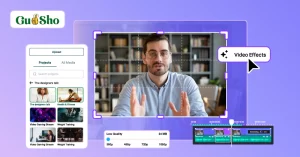

Editing raw video footage with AI means handing the repetitive parts of an edit to software while you keep the creative decisions. The software reviews clips, picks usable takes, and removes dead air. You direct the result and refine it.
This matters because raw footage piles up quickly. A twenty-minute video can start as two hours of recordings. Most of that time is spent watching, sorting, and trimming rather than making creative choices.
AI changes where those hours go. The tools in 2026 can do first-pass work that used to belong to an assistant editor. That frees you to focus on story, pace, and feel.
This guide covers where editing time actually disappears, how to prepare your footage, which tool type fits best, and how to build a fast workflow from upload to export.
Where does the time go when editing raw footage?
Most of the delay comes from execution, not craft. Craft is judgment. It covers the story, the rhythm, and what a cut should feel like.
Execution is the repetitive layer around it. Here is what it usually includes:
- Watching hours of footage to learn what you have
- Comparing several takes of the same line
- Cutting false starts, pauses, and filler words
- Arranging clips in a sensible order
- Fixing audio problems and matching color
None of these tasks is difficult. They are simply slow. Each one also repeats on every project, so the cost adds up fast.
A useful way to think about it is this: your time is best spent on the 20 percent of the job that needs taste. The other 80 percent is a good candidate for automation. You decide what a scene should say. The software does the sorting.
How should you prepare raw footage before editing?
Good prep makes any editing method faster, with or without AI. A few small habits pay off every time.
Name your clips clearly. Rename files by scene, topic, or shooting order. Even a short label beats a string of camera numbers.
Keep one project folder. Put every clip, audio file, and reference in one place. Searching across folders wastes minutes that add up.
Gather your script or notes. If you have a script or transcript, keep it ready. It gives an editor a structure to build against. If you do not have one, that is fine, because spoken dialogue can be read directly from the footage.
Mark your intent. Write a sentence or two about what the video should do. Who is it for? What should the viewer remember? That direction guides every later choice.
Keep the messy footage. Do not pre-delete things you think are bad. Let the editing process judge them. You may be surprised by what turns out to be usable.
Which editing tool is best for raw footage in 2026?
The right tool depends on how much of the grunt work you want to hand over. Traditional editors give you excellent control. They still expect you to perform each step yourself.
AI editors work differently. You describe the outcome, and the software does the first pass. The best ones then leave everything on an editable timeline, so you stay in control.
The Invideo Editor follows this model. It is a professional video editor with AI editing agents you can assign real work to. It runs in the browser, so you sign up and start editing. You can try the free agentic video editor with no software to install.
You upload your footage and give the agent your direction. It reviews the material, picks the usable takes, and removes repeats and filler. It then lays the selected audio and video onto the timeline.
The key point is that you can see every change. The result is a timeline you can inspect, redirect, and refine. Nothing is hidden behind a finished export.
Invideo Editor also covers more than assembly. It includes footage search, color and grading, audio cleanup, dubbing, and versioning in the same project. That means you do not bounce between five different apps.
Who benefits most? YouTube creators with long recordings are an obvious fit. So are editors cutting interviews, podcasts, multicam shoots, and commercial projects. Creative teams also gain from working in one shared project.
If you prefer a traditional editor, that is a fair choice. Just weigh how much manual sorting it will ask of you.
How do you build a first cut from raw footage with AI?
The most valuable early step is a base cut. A base cut is the first complete timeline assembled from your usable footage. Repeated takes, mistakes, pauses, and filler are already gone.
It is not a highlight reel. It runs from start to finish. It is also not a final deliverable. Its value is that you carry on editing from it.
Here is a simple workflow.
Step 1: Upload your footage. Add every clip to the media pool. Include the messy ones, since the agent needs them to find the best takes.
Step 2: Add a script or transcript. If you have one, attach it. The agent can then match takes to each line.
Step 3: Describe the cut you want. You can ask by topic, story, shooting order, or transcript. For example: “Build a cut in shooting order, keep one clean take per point, remove pauses.”
Step 4: Review the timeline. Watch it once without stopping. Note anything that feels missing or out of order.
Step 5: Redirect and refine. Ask for changes in plain language, then adjust by hand where needed. Swap one take for another or tighten a section.
This works for different footage types. A single camera with a script gets one clean take per line. Footage without a script gets each point kept once. Multicam footage is synced and layered. Music-led projects can be arranged around a beat pattern.
For your first test, use messy footage. A few repeated lines and false starts show what the agent can clear away. Clean single takes will not show you much.
What should you do after the base cut?
Once the structure holds, the finishing work becomes short and focused. You are polishing rather than rescuing.
Tighten the pacing. Trim slow sections and shorten pauses. Pace is a creative choice, so this is where your judgment matters most.
Clean the audio. Remove background noise and balance dialogue levels. Viewers forgive rough visuals faster than poor sound.
Match the color. Footage shot at different times often looks inconsistent. Correct it, then apply one look across the sequence.
Add chapters and titles. Markers help viewers jump to what they need. They also make long videos easier to navigate.
Create versions. Turn the project into short social cuts, trailers, or platform-specific edits. Doing this from one timeline saves a lot of rework.
Invideo Editor can take on several of these jobs as well. Color, audio post-production, and cut-downs all sit inside the same project. You review each result and keep what works.
What mistakes slow down AI video editing?
AI speeds things up, but some habits can still cost you time.
- Giving vague direction. “Make it good” is not a brief. Say what structure, length, and tone you want.
- Skipping the review. Always watch the assembled timeline. AI saves effort, but it does not replace judgment.
- Editing polish too early. Do not grade or add effects before the order is right.
- Deleting footage first. Let the tool judge takes. You can always override it.
- Treating the first output as final. The base cut is a draft. Plan to refine it.
Avoid these, and your time savings stay real.
Final thoughts
Editing raw footage faster is mostly about removing repetition. Prepare your files, give clear direction, and let AI handle the sorting. Then spend your energy where it counts, on story and rhythm.
The goal is not to remove the editor. It is to give the editor more time to edit.
Frequently asked questions
1. Can AI edit raw video footage automatically?
Yes, to a point. AI can review footage, select takes, remove filler, and assemble a first cut. You still guide the story and refine the result. Think of it as a fast assistant editor, not a replacement.
2. How long does it take to edit a video with AI?
It depends on the footage and the length. The assembly stage, which is often the slowest, can shrink dramatically. Refining and polishing still take time, but you start from a full timeline instead of a blank one.
3. What is the best way to cut filler and silence from video?
Use an editor that detects pauses, filler words, and repeated takes automatically. Doing it by hand means scrubbing through every minute. An AI editing agent, such as the one in Invideo Editor, handles this in one pass and leaves the changes visible on the timeline.
4. Do I need a script to use an AI video editor?
No. A script helps the agent match takes to lines, but it is optional. Without one, the editor can work out what was said, keep each point once, and drop the repeats.
5. What is a base cut in video editing?
A base cut is the first complete timeline built from your usable footage, with mistakes, pauses, and repeated takes removed. It runs start to finish and serves as your starting point for further editing.